
01
Prepare the scene
Open the Studio view where you want the H2STREAM overlay to appear.
H2STREAM gives you one place to run TikTok LIVE reactions and copy the cloud overlay URL you need inside TikTok LIVE Studio.
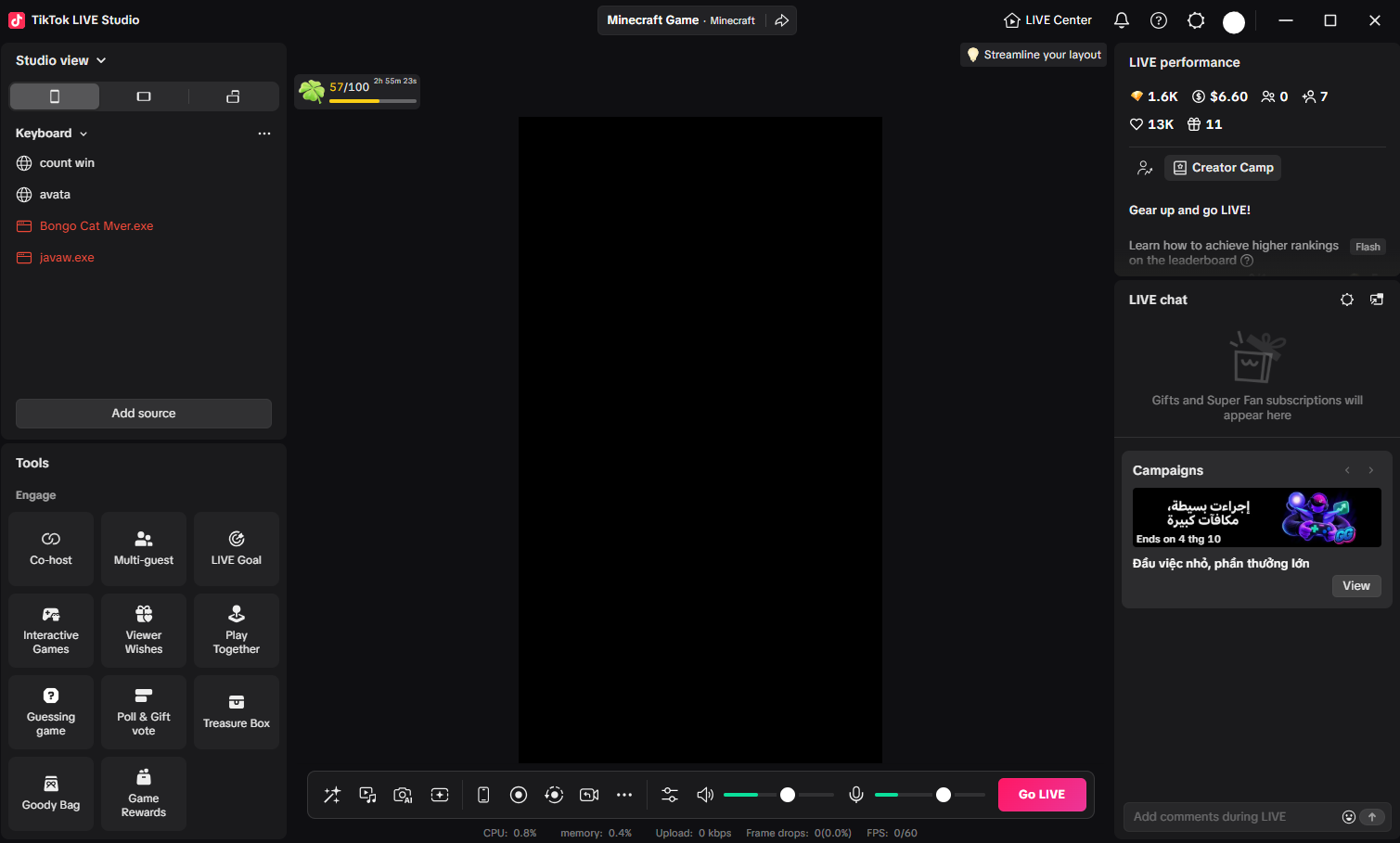
Keep H2STREAM running, add its public overlay as a Link source, and let LIVE events update the scene in real time.
Open the Studio view where you want the H2STREAM overlay to appear.
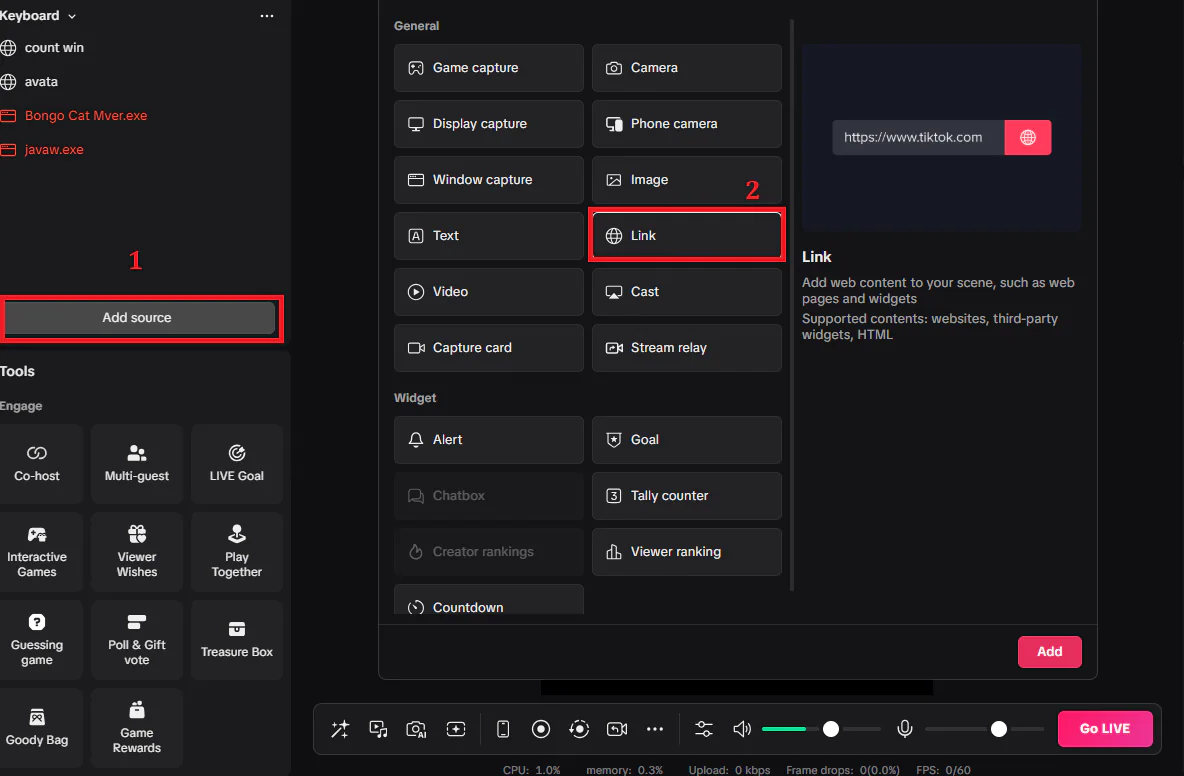
Use Add source, choose Link, and keep the source active for reliable updates.
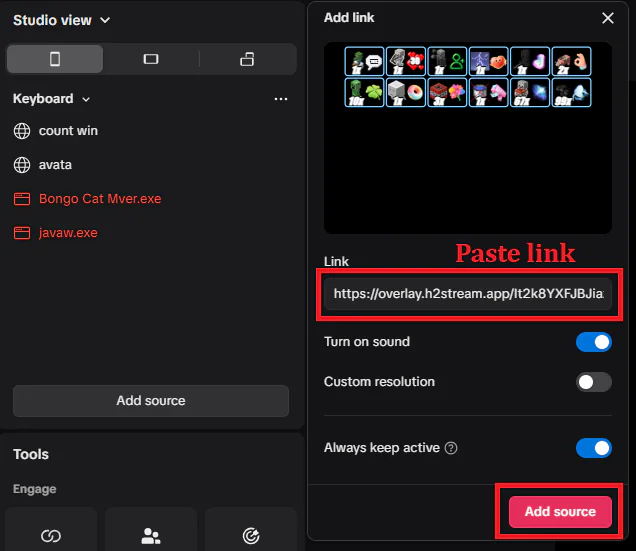
Paste the URL copied from H2STREAM, enable sound when needed, then add the source.
In TikTok LIVE Studio, click Add source and select Link from the General source list.
Paste your private overlay URL, turn on sound for audio overlays, enable Always keep active, then click Add source.
Open the overlay library, copy its public URL in H2STREAM, then follow the two steps above.