
Open H2STREAM
Launch the portable app, sign in and confirm the active plan and account status.
Prepare H2STREAM, connect TikTok LIVE, configure PaperMC and install an official game without leaving the desktop app.
Launch the portable app, sign in and confirm the active plan and account status.
Enter the TikTok username, connect and confirm that incoming LIVE events appear in Recent Activity.
Choose the server folder and Java path, install PaperMC, then set memory, world, port and player limit.
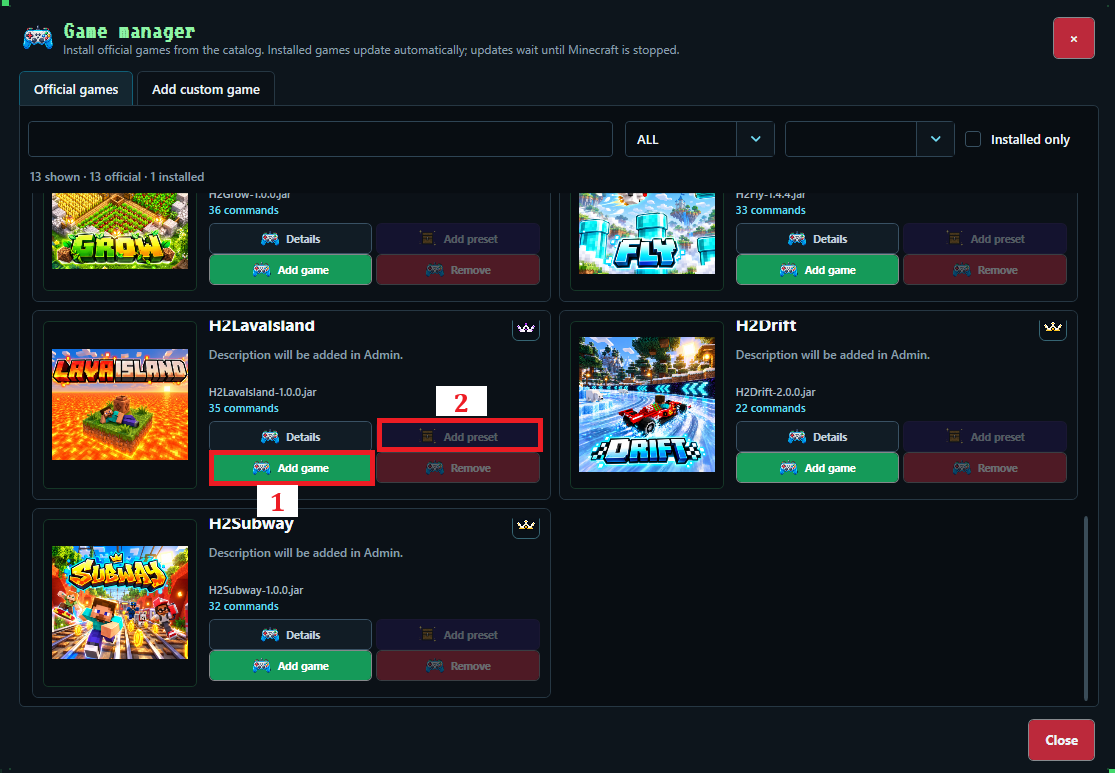
Install an official plugin, add its preset, test commands and only then expose the reactions to the audience.
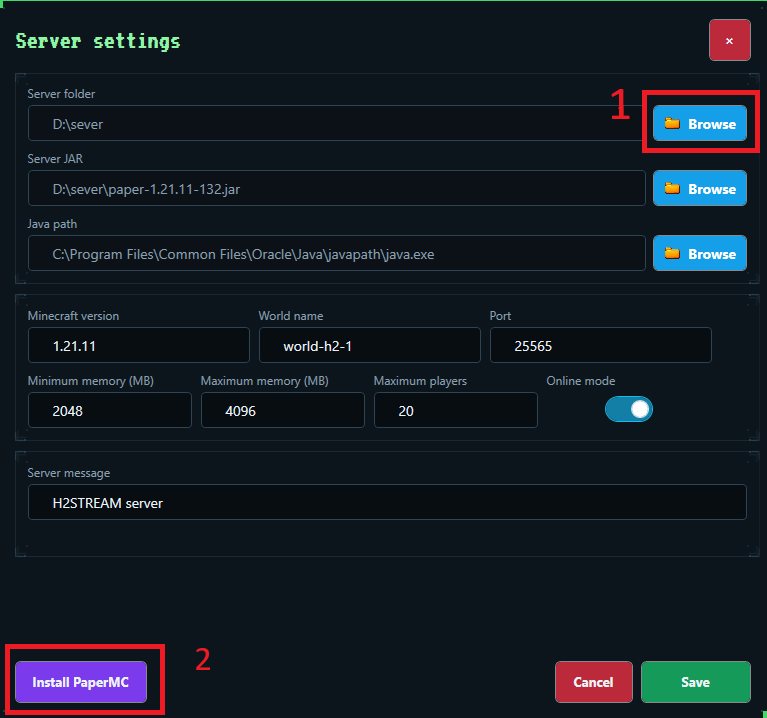
Use Browse for the server folder first. H2STREAM fills the JAR and Java paths, or lets you select them explicitly when your machine is different.
The official catalog shows the plan requirement, version and command count for each plugin. Open Details before installing so you know exactly what the game can do.
Run one safe test for each moving part before the audience joins.